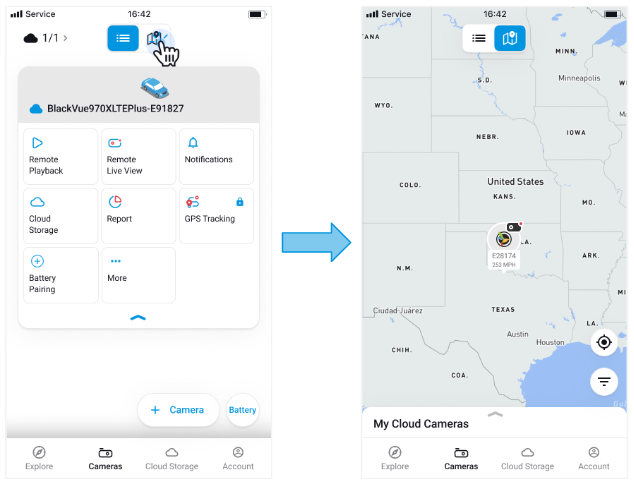
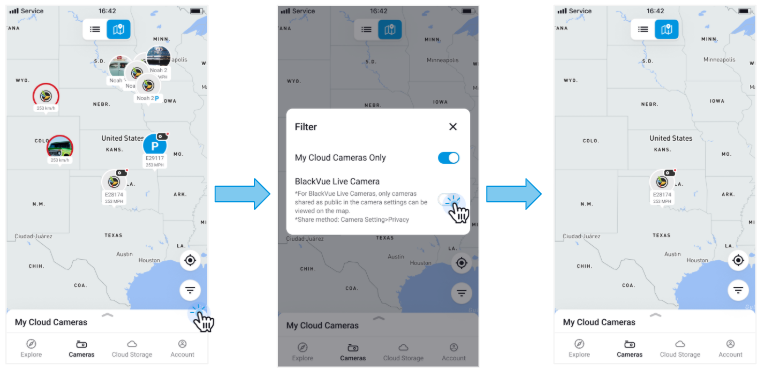
🗺️Use Map View to See Camera Locations Tap the map icon at the center of the Camera List screen to open Map View. In Map View, you can see the real-time locations of your cloud-connected cameras. By default, your cameras are not visible to others. To share your location publicly, go to: Camera Settings > Privacy > Enable “Share Location.” 🔔 Note: Only cloud-connected cameras appear on the map. Non-cloud cameras are not shown. 👀 How to View or Hide Public Cameras Map View also displays public cameras shared by other users. To hide public cameras: Tap the filter icon. Uncheck “BlackVue Live cameras”. Public cameras will be hidden from the map.