What is the Event Map?
In the Event Map, you can see crowd-sourced events videos (impact, hard braking, etc.), shared by the BlackVue community members.
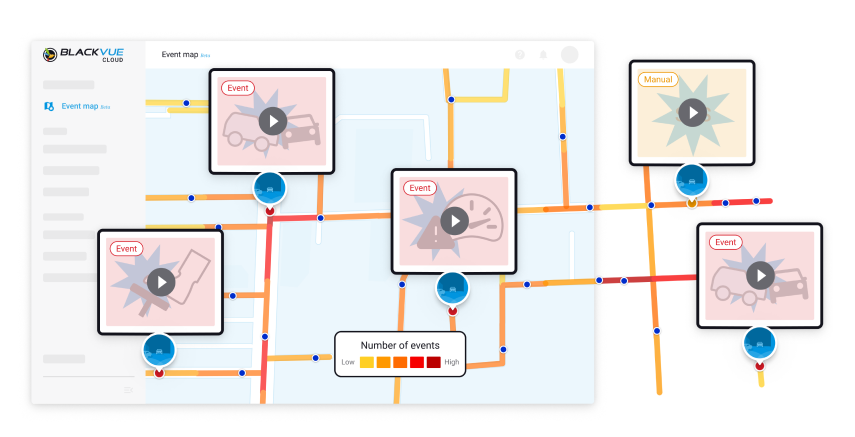
How to see the Event Map?
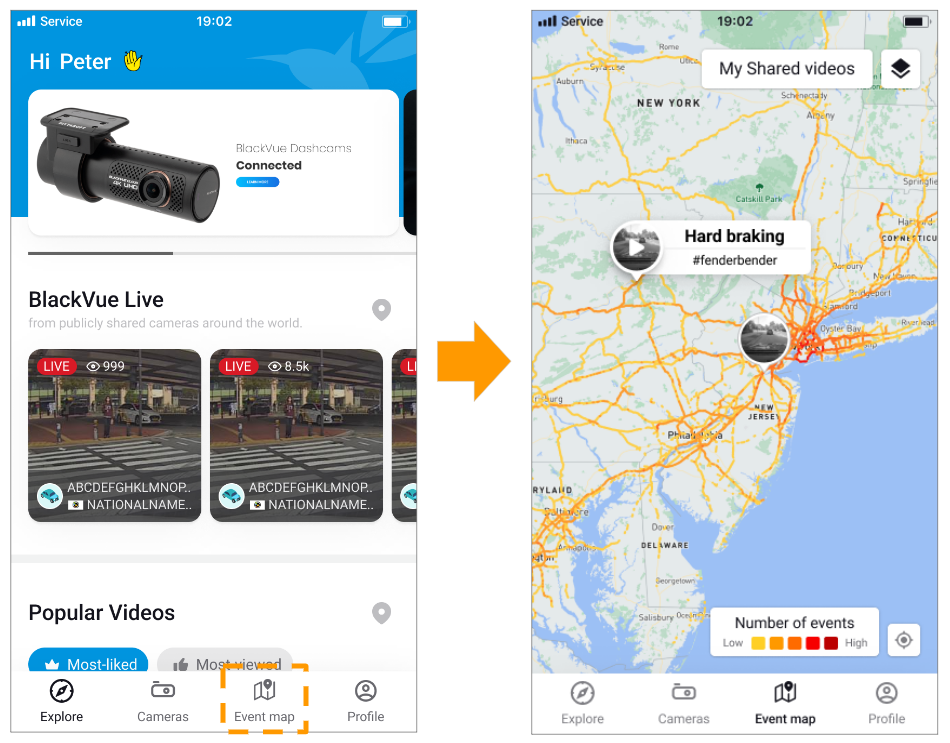
The Event Map menu can be found next to the Camera tab on the app's main landing page, as you see below.
What do I see on the Event Map?
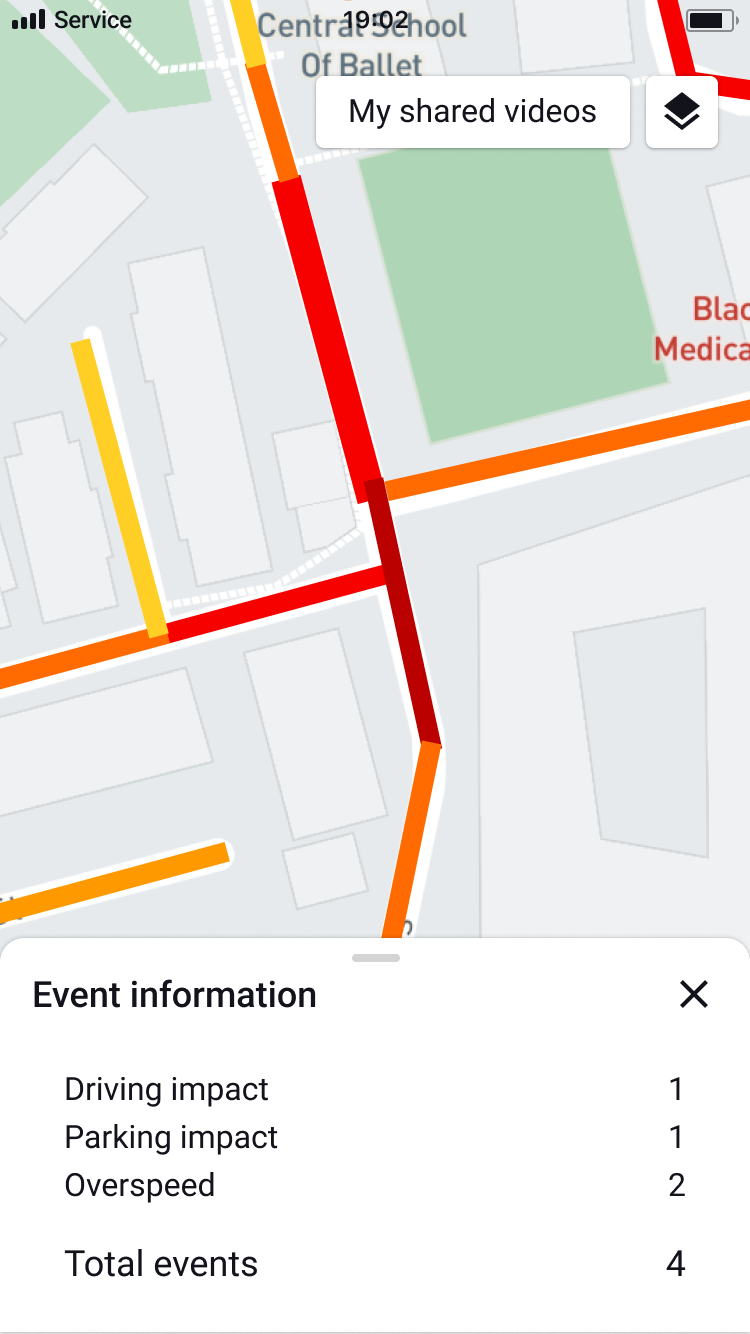
The Event Map shows BlackVue events statics on the road map, with the different line colors that identify the number of events that happened in a particular area.
What kinds the events can be shown on the Event Map?
The Event Map shows only road-related events among BlackVue-detected events. AI-generated events such as Drowsiness and Hand Distraction are excluded. Please refer to the chart below for more details.
|
Events |
Shows on Event Map |
|
Driving Impact |
O |
|
Parking Impact |
O |
|
Manual |
O |
|
Overspeed |
O |
|
Hard acceleration |
O |
|
Hard Cornering |
O |
|
Hard braking |
O |
|
Drowsiness |
X |
|
Undetected |
X |
|
Distracted |
X |
|
Hand distraction |
X |
|
Geofence Enter |
X |
|
Geofence Exit |
X |
|
Geofence Pass |
X |
What is the purpose of the Event Map?
The Event Map is a video map created by the participation of users. Users share the event video directly on the Event Map road, and through this, users will be able to engage in various communication activities and enjoy watching the videos together with others.
Using the Event Map
How to share a video to the Event Map?
1. Log in to the BlackVue APP and go to the Cameras tab.
2. Select the camera and locate the file you want to share from the Camera, Cloud, or Live Event Upload tab.
*At present, sharing videos is not just limited to event files. All other video types (Normal, Manual, and Parking files) can also now be shared manually to the Event Map.
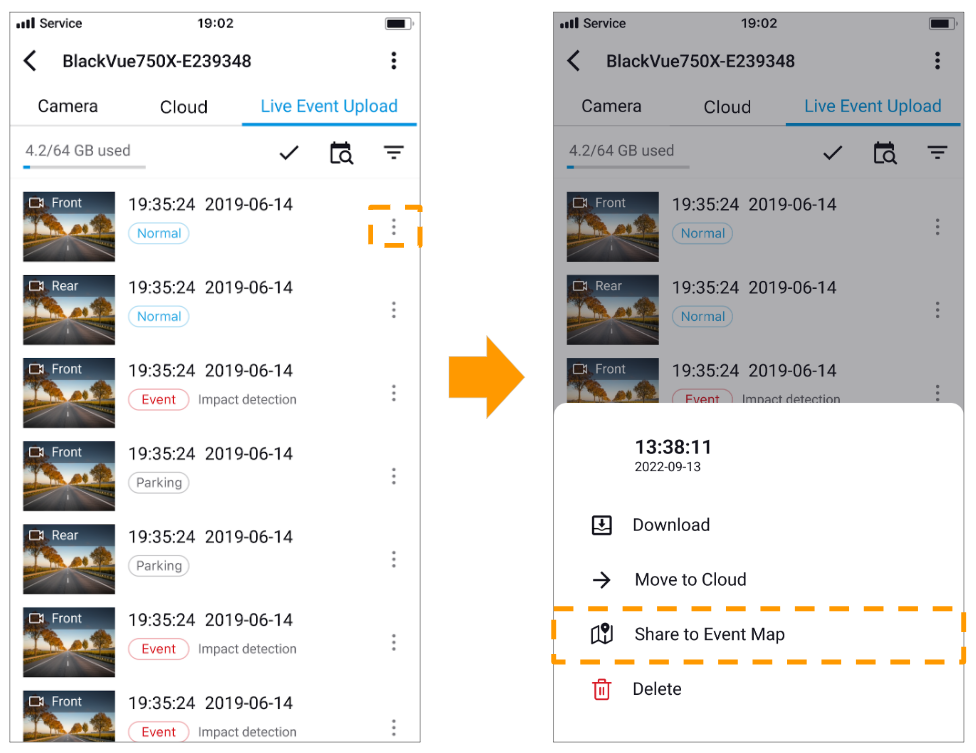
3. Select the three vertical dots icon (ellipsis) to show the sub-menu and select the Share to Event Map button. (See the chart above for which events can be shared.)
4. Add hashtags and a description (optional).
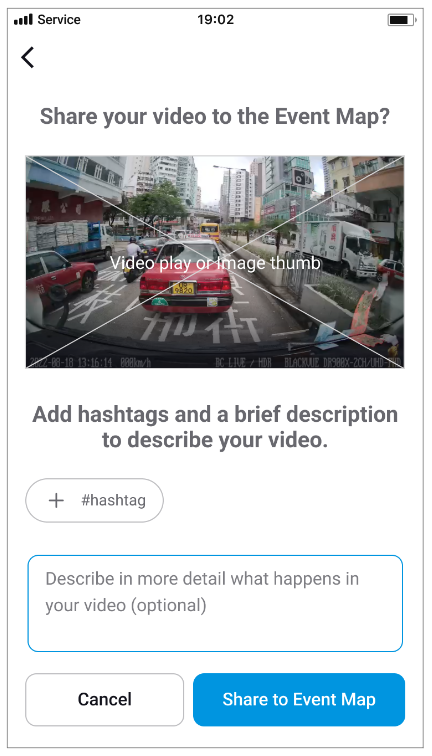
5. Select the Share to Event Map button.
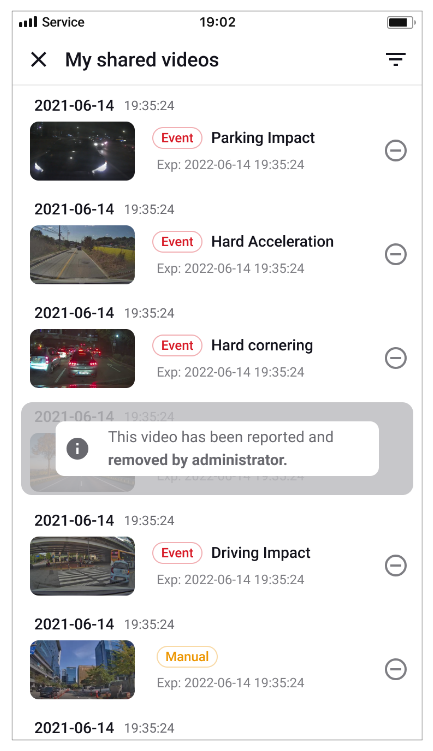
6. Go to Event Map and see My shared videos menu to manage the videos.
How to play shared videos on the Event Map?
1. Log in to the BlackVue App.
2. Go to Event Map.
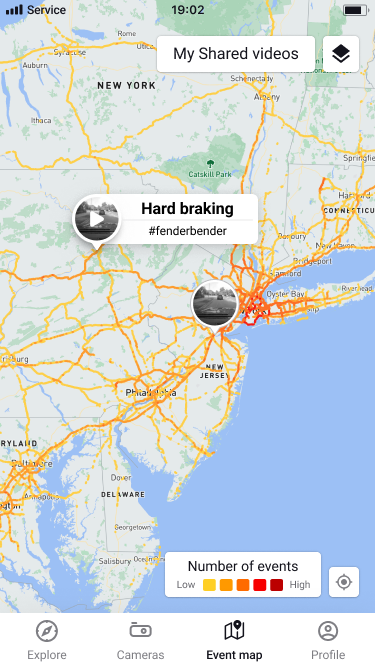
3. Select the shared videos featured on the Map as below.
(Selected video will show short information about the shared video.)


4. Select play button in the center of the video thumbnail to play video.
How to play my shared videos on the Event Map?
1. Log in to the BlackVue App.
2. Go to the Event Map.
3. Select the My shared videos menu on the right upper corner of the screen.
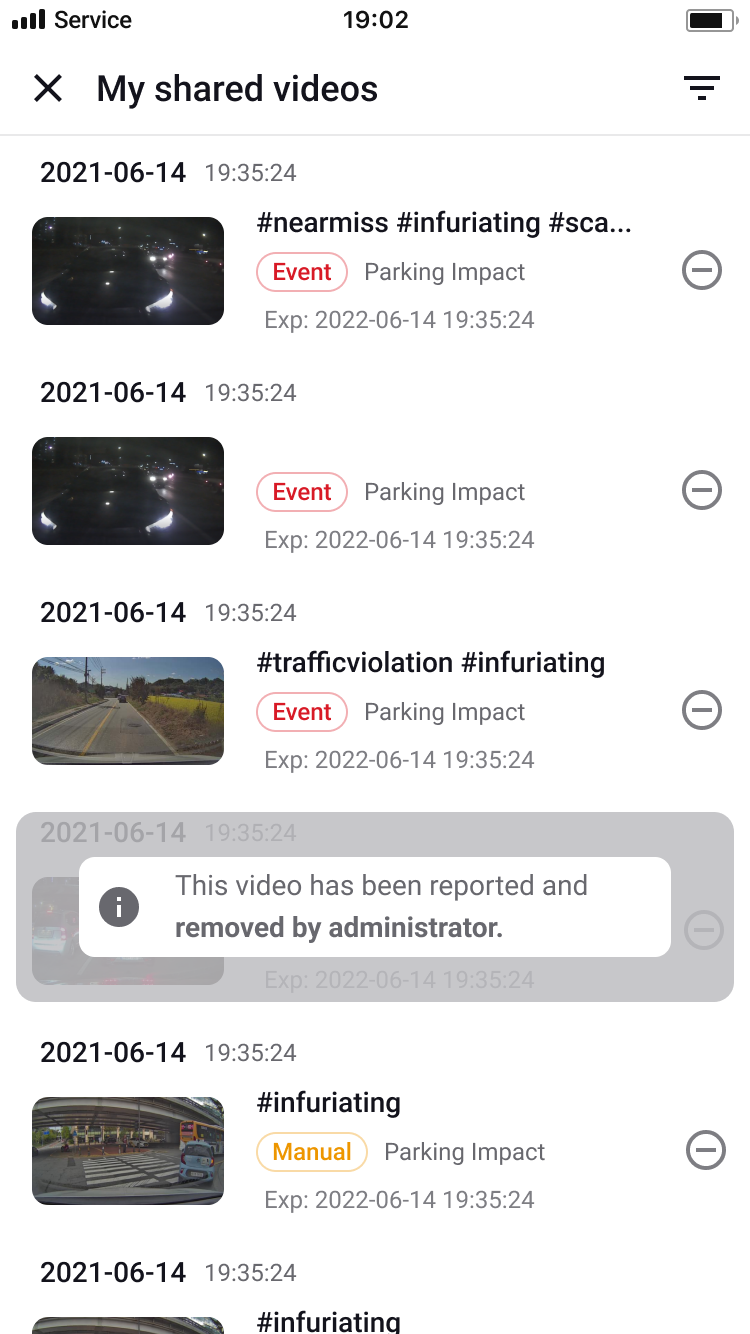
4. All shared videos will be displayed.
5. By clicking the video from the list you can play the video.
How to edit hashtags or descriptions of videos that I shared?
1. Select the video and play the video that you want to edit.

2. Select the Edit icon on the right side of the description section.
3. Edit hashtags and descriptions and select the Save button.

How to remove my shared videos on the Event Map?
1. Log in to the BlackVue App.
2. Go to the Event Map.
3. Select the My shared videos menu on the right upper corner of the screen.
4. All shared videos will be displayed.
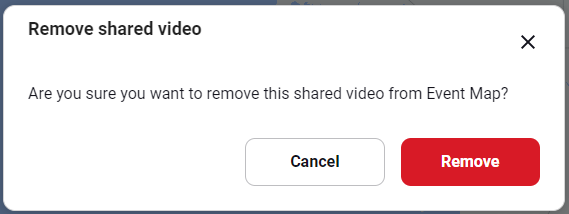
5. Select the 
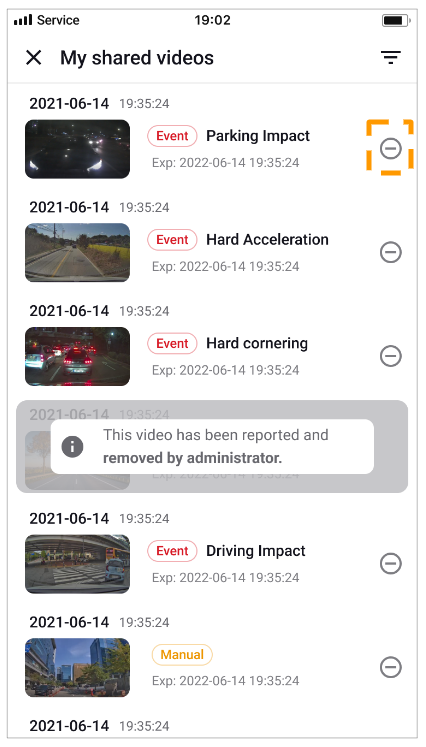
6. After confirmation of removing the video, you can see the video is removed from the list and the Event Map.
How to report inappropriate videos shared by others?
1. Play the video on the Event Map.
2. Select the 
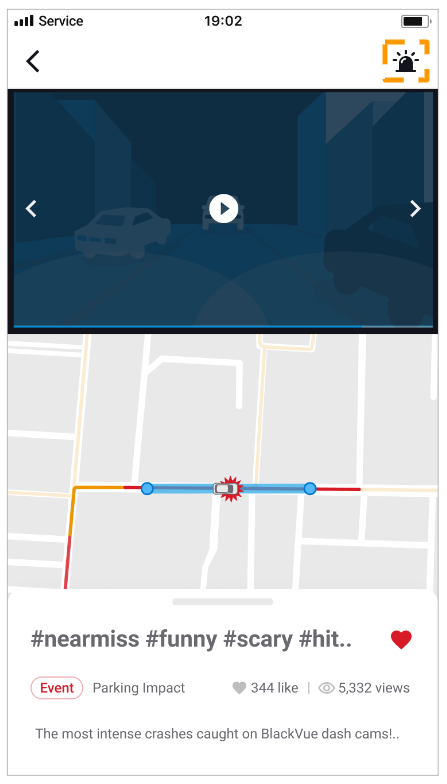
3. Select the report reason from the list and click the Report button.
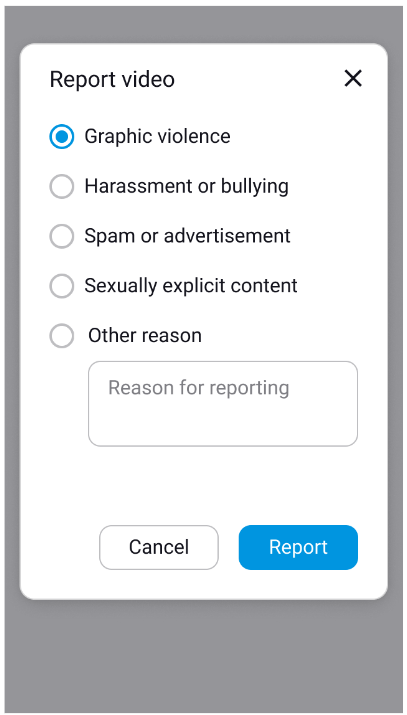
4. Your report will be sent to the BlackVue team for them to review the video.
5. After reviewing the video reported within 24 hours, inappropriate videos will be blocked from the Event Map.